

The document search allows you to display a list of Payment documents that match the search criteria you entered, and check Payment details.
You can also download the searched invoice information to a CSV file.
Admin portal / Payment management tool The following table describes the basic operations and buttons on the screen.
| image | Feature Name | Description |
|---|---|---|
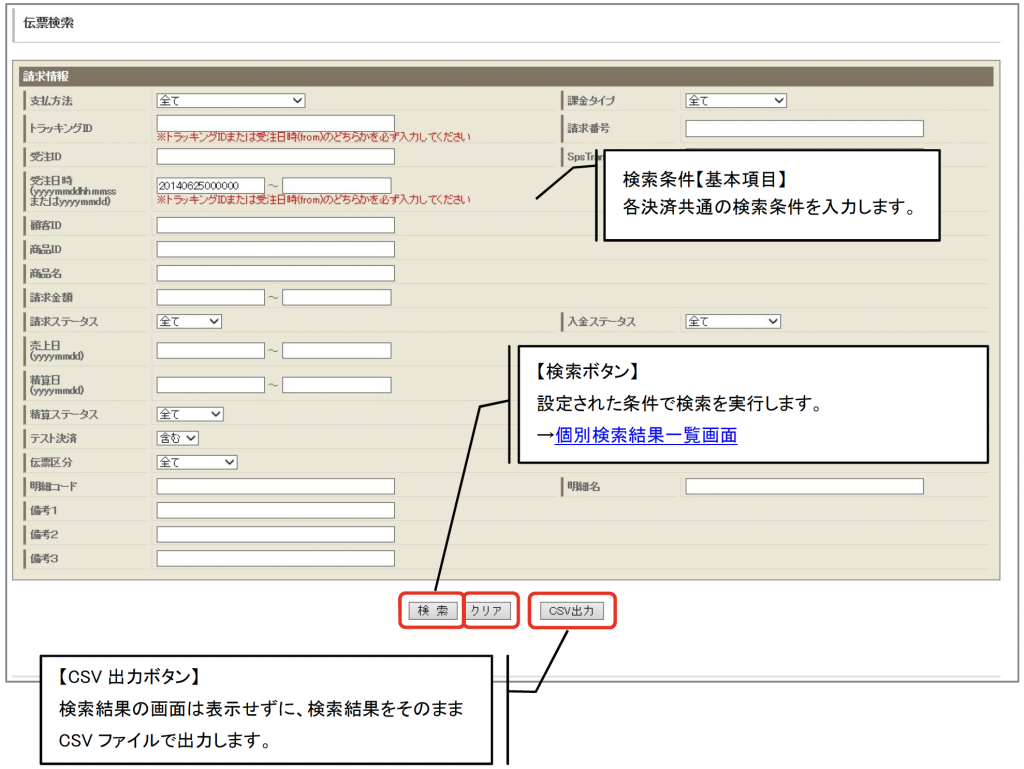
 | Search button | The search will be performed based on the search criteria entered on the screen. |
 | Clear button | Resets the search conditions entered on the screen to their initial values. |
 | CSV output button | The search results based on the search conditions entered on the screen will be output to a CSV file. Please refer to the CSV format for the items and format output to CSV. |
 | Select all/Delete all buttons | Selects or clears all check boxes on the screen. |
 | Narrow down button | Search for Merchant ID and service ID and enter them in the search condition input fields. |
 | Paging Function | You can switch pages. Click "Go to top" to go to the first page, Click "Last" to go to the last page. |
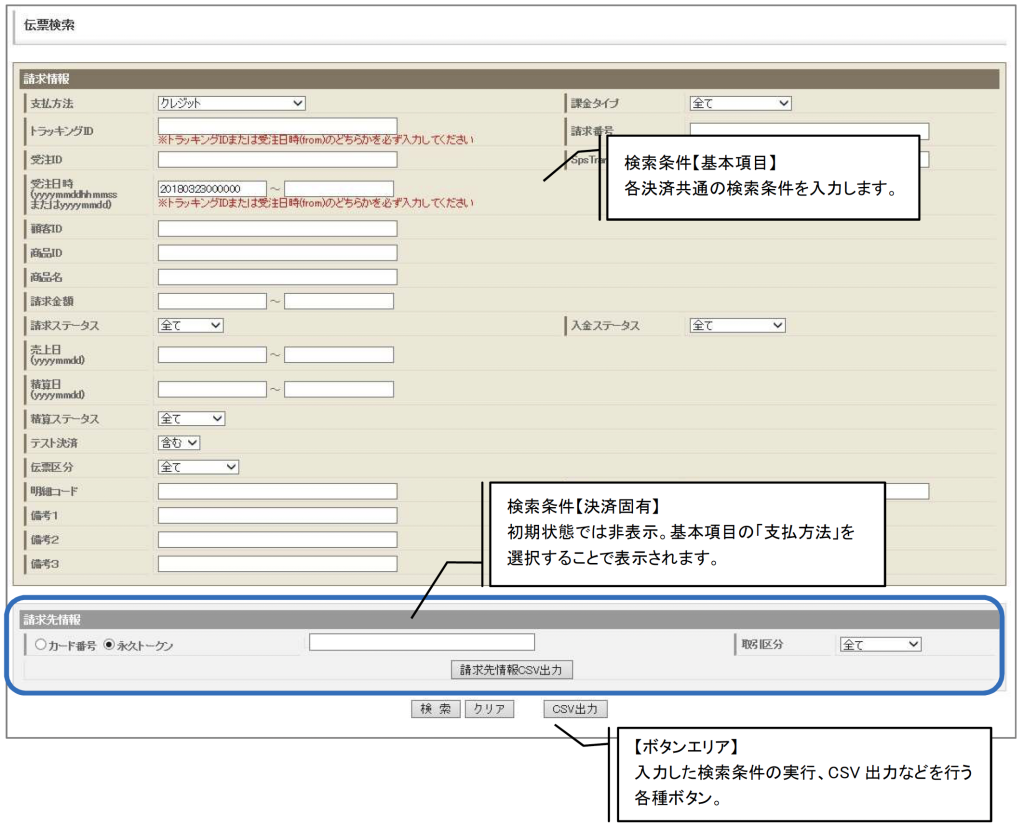
This is the screen for entering search conditions for the document you want to check. The screen is divided into a field for specifying conditions for basic items common to all Payment, and a field for specifying search conditions specific to each Payment (billing information field).
▽ [Invoice search] screen (1/2)
▽ [Invoice search] screen (2/2)
▽ [Individual search result list] screen
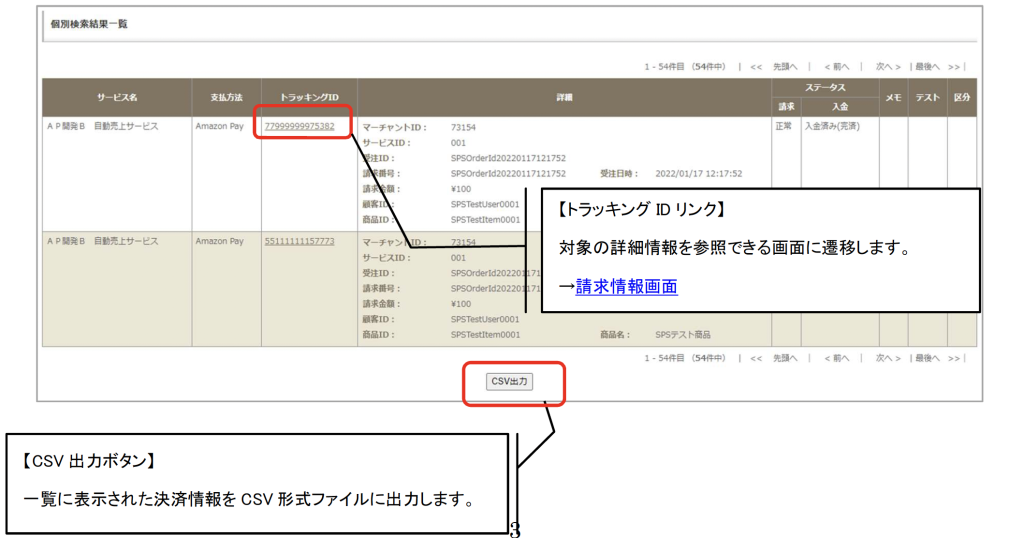
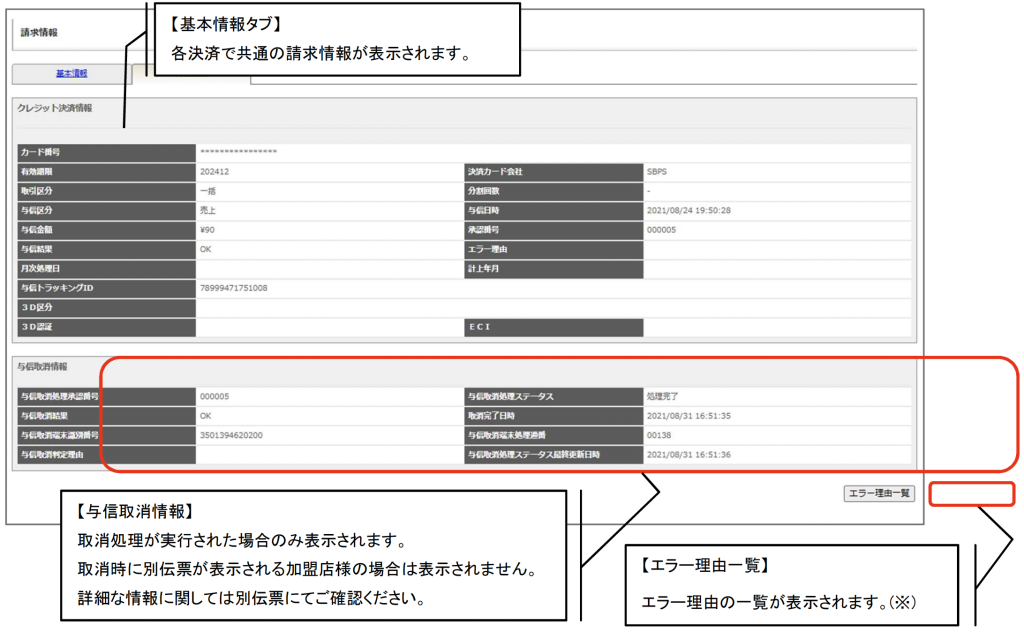
Click the Tracking ID link on the individual search results screen to display detailed billing information.
The billing information screen displays the following information:
▽[Billing information basic information] screen
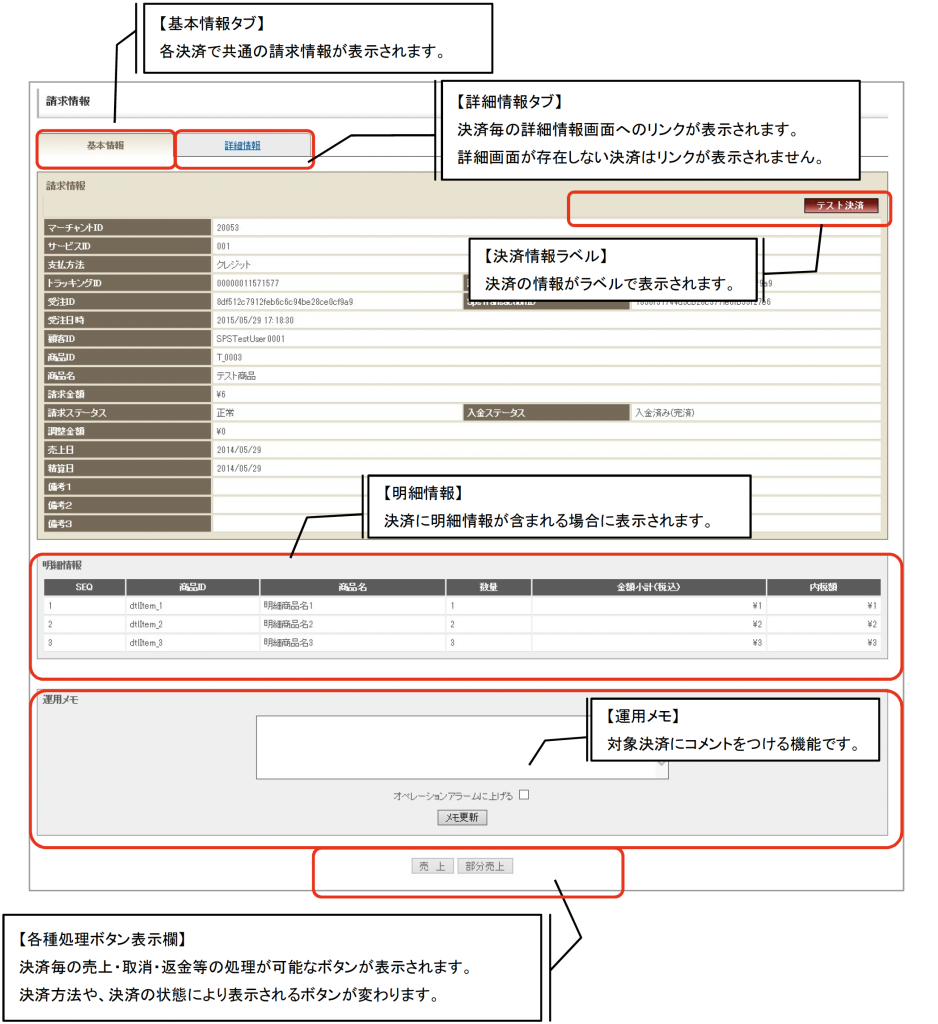
If you click the Details tab on the Billing Information (Basic Information) screen, the following screen will be displayed.
▽ [Billing Information Details] screen
Detailed functions and operation methods of SBPS Admin portal / Payment management tool
| For more information on the SBPS Admin portal / Payment management tool functions and how to operate it, please download the manual from the link below. SBPS Admin portal / Payment management tool Functional Manual |
