Developer/Connection method/Link Type/List of Provided Functions

List of Provided Functions

The following functions are offered through the link system:

Purchase Request

A Link Type purchase request supports all payment methods and is used to perform purchase of one-time billing, recurring billing (simplified), or the purchase and recurring billing (fixed term/pay as you go) and cancellation of recurring billing (simplified).

Customer Payment Information Registration Request

This is a request used to register (store) end users' payment information with SBPS's system as well as to update and delete their payment information.
* A function to determine whether to register new or update customer payment information is not available.
*If a credit card/web account registration request is made with the same Customer ID, the registration information will be updated.

Recurring Billing (Fixed Term/Pay as You Go) Request

A function supporting payment methods that use recurring billing (fixed term/pay-as-you-go), and a request used for requesting and terminating recurring billing (fixed term/pay-as-you-go).
* This function is also used for re-requesting the billing in some payment methods.

Function IDProcess nameFlowDescription
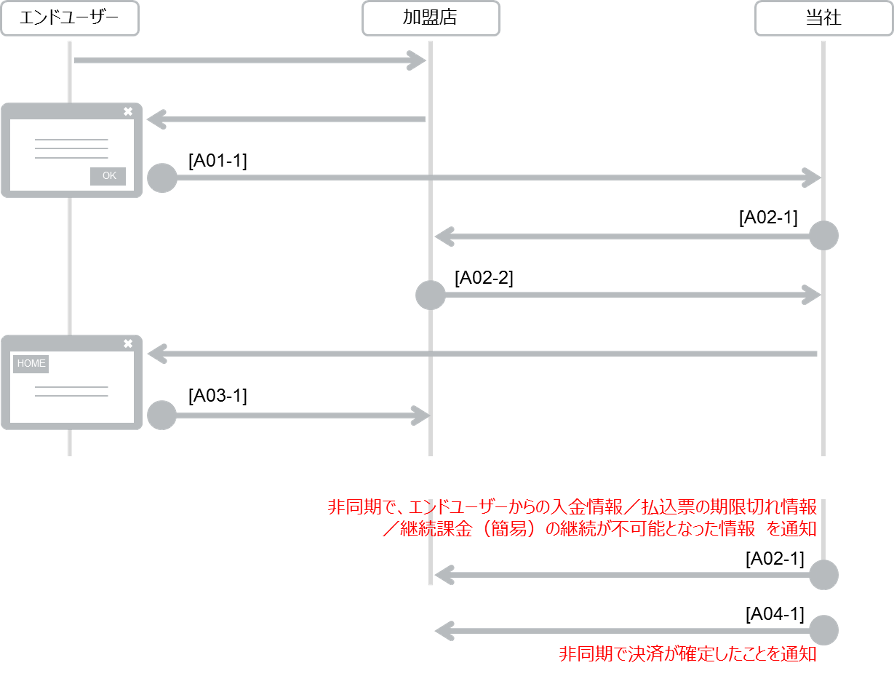
A01-1Purchase RequestMerchant → SBPSPurchase one-time billing / recurring billing (simplified) / recurring billing (fixed term/pay as you go) and
cancel recurring billing (simplified).
A02-1Purchase Result CGISBPS → MerchantNotifies either the result of purchase or cancellation.
Also asynchronously notifies information on credit from the end user, expiration of the payment slip,
or failed recurring billing (simplified).
A02-2Purchase Result CGI
Response
Merchant → SBPSReturns a response to the result CGI
A03-1Purchase results
(redirect back to merchant's screen)
SBPS → MerchantNotifies the result of the purchase or cancellation of a purchase request. Also
returns the end user screen to the merchant page.
A04-1Close NotificationSBPS → MerchantAsynchronously notifies that the payment has been closed.
(Only used with Rakuten Pay (online payment))

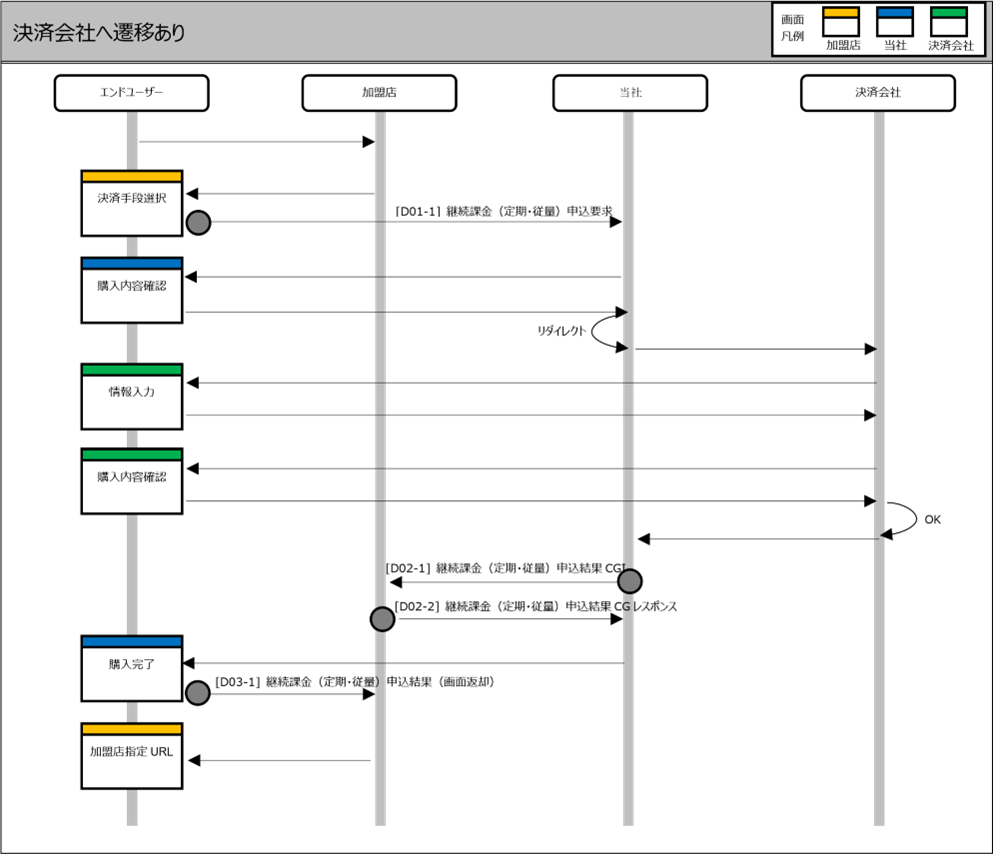
There are the following three types of timing of screen transitions and notifications when end users make payments.

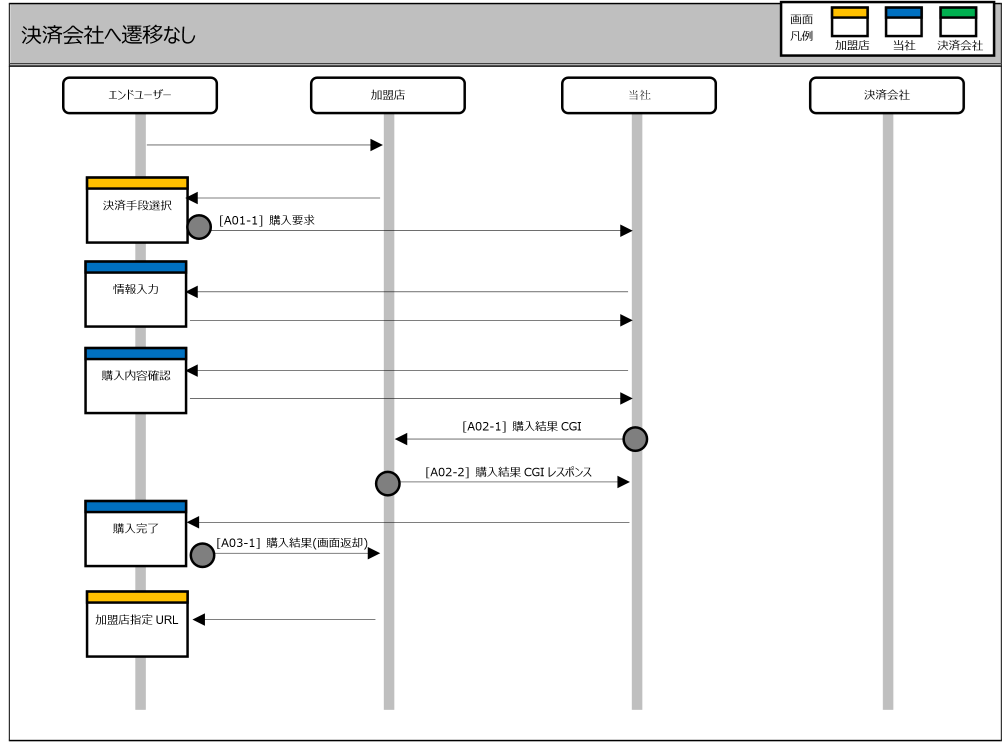
  • Pattern in which the screen moves only to screens provided by SBPS
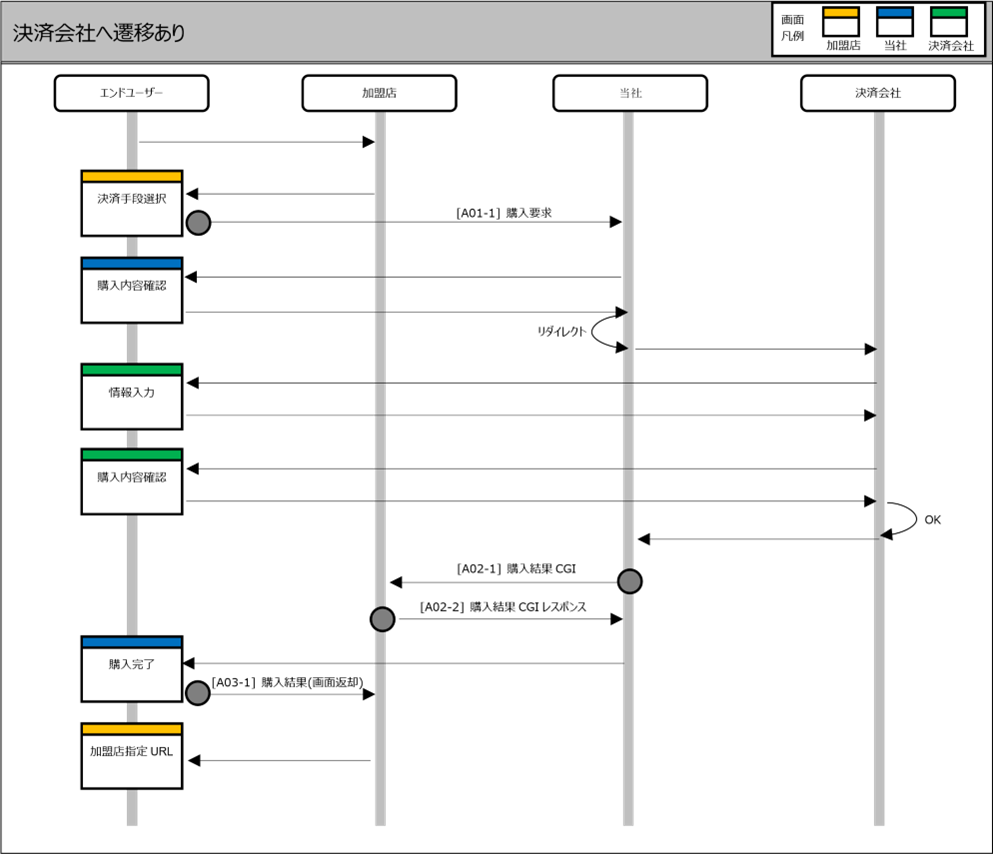
  • Pattern in which the screen also moves to screens provided by each financial institution
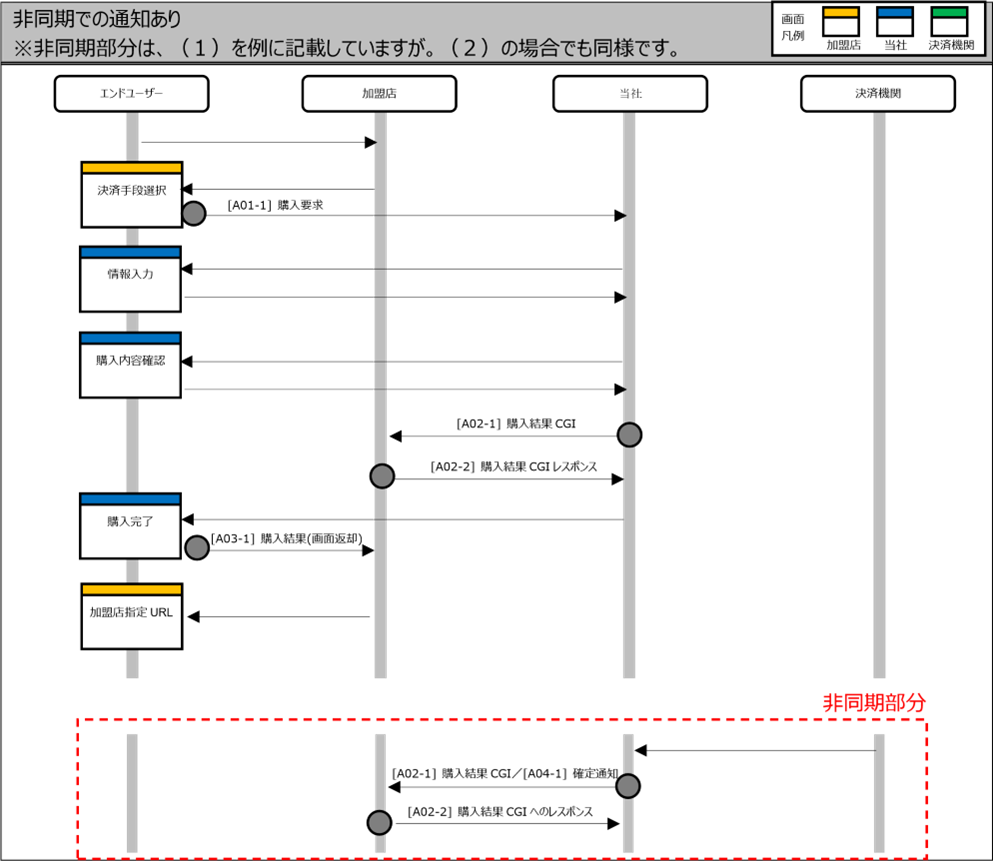
  • Pattern in which asynchronous notification is also made
  • Pattern in which the screen moves only to screens provided by SBPS

The pattern in which the entire screens for the payment process from payment information entry to payment completion are displayed only at our end for conclusion. Since the entire screens are provided with our standard screens, it is possible to provide the service with a unified screen image. By customizing the screens, it is also possible to unify the screen design with the Merchant's design. If you wish to customize the screens, please contact our sales representative.

<<Applicable payment methods>>

Credit card payment *1BitCash paymentJCB PREMO payment
Convenience store paymentPay-easy paymentGeneral wire transfer (bank-to-bank wire transfer) payment
Apple PayNP Atobarai

*1: For the ID verification service (3D Secure) in credit card payment, a password input screen on the credit card company side will be inserted.

*The same processing sequence is used for termination.

  • Pattern in which the screen also moves to screens provided by each financial institution

In this pattern, the payment information input screen and other screens are displayed on each financial institution side. The screen image displayed after transition to each financial institution and the screen transition will vary between the financial institutions.

<<Applicable payment methods>>

UnionPay Net PaymentSoftBank Matomete Shiharai (A)SoftBank Matomete Shiharai (B)
d Payment (Carrier/Wallet)au PAY(au Kantan Kessai (Easy Payment))WebMoney payment
NET CASH paymentWallet payment service (Type-Y)Rakuten Pay (Online Payment)
Alipay+PayPal PaymentNetMile
Rakuten EdyMobile Suica PaymentPayPay (Online Payment)
Merpay Online Paymentau PAY (Online Payment)EPOS Kantan Kessai Service
Rakuten Pay (Online Payment)V2WeChatPayatone Pay Later / Pay Next Month

*The same processing sequence is used for termination.
*As for PayPay (Online Payment) used with the specified close authorization capture, the process result notification is sometimes carried out through the asynchronous API Type.
For more information about notifications, see the API type PayPay (Online Payment) IF specification.
*PayPay (online payment) may execute A02-01 after the transition to the error screen occurs without SBPS executing A02-01 as a sequence due to the specifications of the payment institution.

  • Pattern in which asynchronous notification is also made

In addition to (1) and (2) above, there is another payment processing pattern in which notification is made asynchronously. Note that payment is also closed asynchronously in the Rakuten Pay (Online Payment). For the notification details through the asynchronous purchase result CGI, refer to the supplemental explanation for the interface specifications in this document.

<<Asynchronous notification types and relevant payment methods>>

Function IDType of NotificationPurposeApplicable Payment Method
A02-1Deposit notificationWhen the end user made deposit at a convenience store or other similar locations.CVS Payment Pay-easy General wire transfer (bank-to-bank wire transfer) payment
cancellation notificationWhen the payment slip is expired.CVS Payment Pay-easy
Recurring Billing Rejection NotificationWhen recurring billing (simplified) failed.Payment methods that supports recurring billing (simplified)
A04-1Close NotificationWhen payment information is closed.
*Rakuten Pay: When the authorization, amount change, or settlement process is carried out.
*NP Deferred Payment: When the settlement or cancellation refund process is carried out.
Rakuten Pay (Online Payment) NP Atobarai
  • For Rakuten Pay (online payment) V2, there is no asynchronous notification.
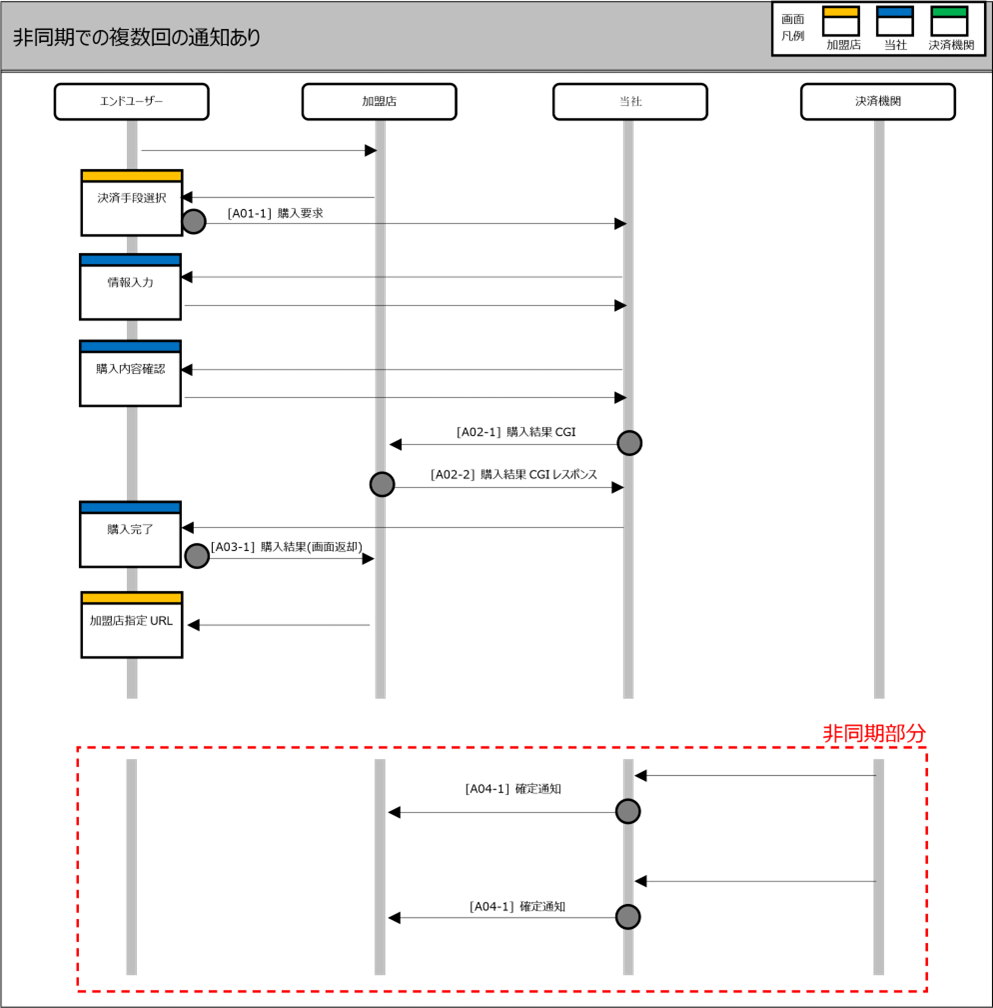
  • Pattern in which multiple asynchronous notifications are made for a request

In addition to (1) above, there is another payment processing pattern in which multiple notifications are made for a request asynchronously. As for NP Atobarai, note that the payment is closed after all the multiple asynchronous notifications are made. For the notification details through the asynchronous purchase result CGI, refer to the supplemental explanation for the interface specifications in this document.

<<Notification types and relevant payment methods for which multiple asynchronous notifications are made for a request>>

Function IDType of NotificationPurposeApplicable Payment Method
A04-1Close Notification[NP Atobarai] When the transaction registration process is closed. When the authorization process is closed.l NP Atobarai

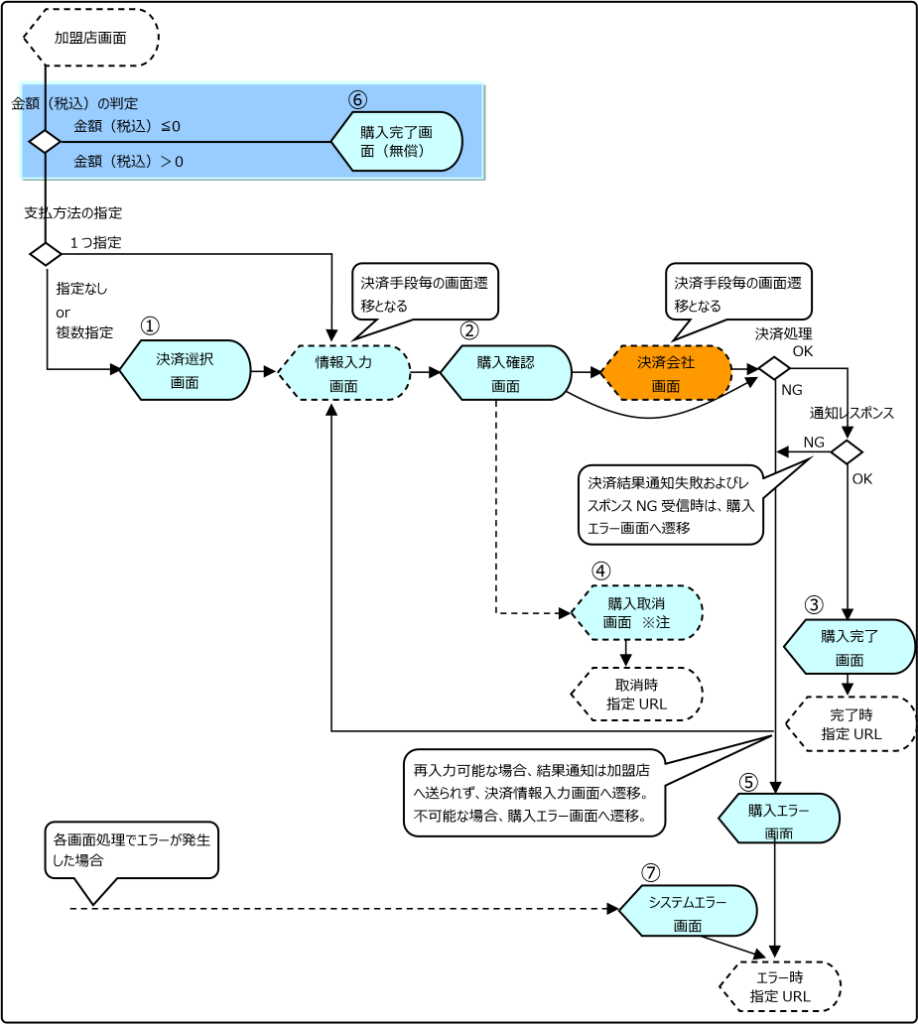
The transition diagram of screens to be displayed to the end user is as follows.

*Note: The transition of the Purchase Cancellation Screen has been deleted in 2020 due to a design change. It will be displayed in the previous design.
• If canceled on the Financial Institution Screen, the screen moves to the URL for cancellation.
• If this transition is necessary, contact our sales representative.
*In the event of a cancellation, system error, or re-entry, a processing result notification will not be sent to the merchant.

The screens displayed in purchase request are as follows.

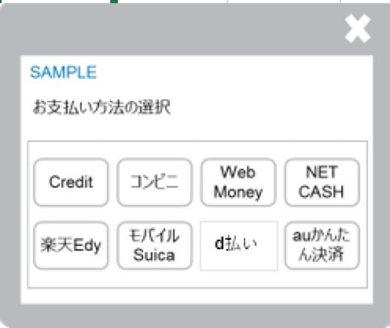
Payment Selection Screen (Screen Transition #1)

  1. Checks the request message from the merchant.
    * For details of the check, please refer to Link Type Basic Specifications.
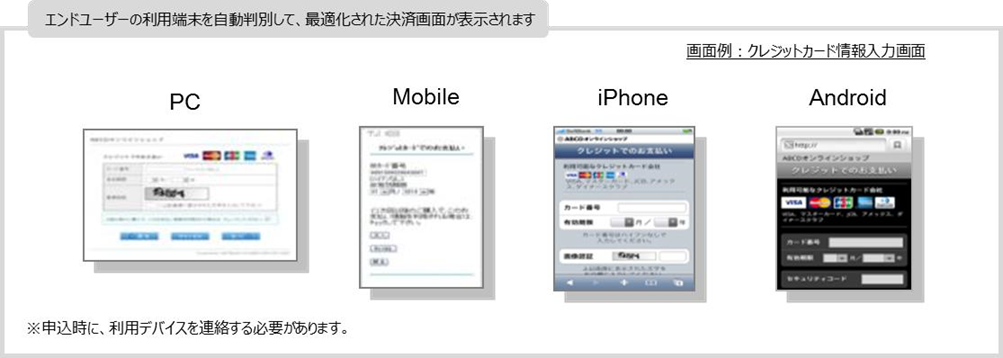
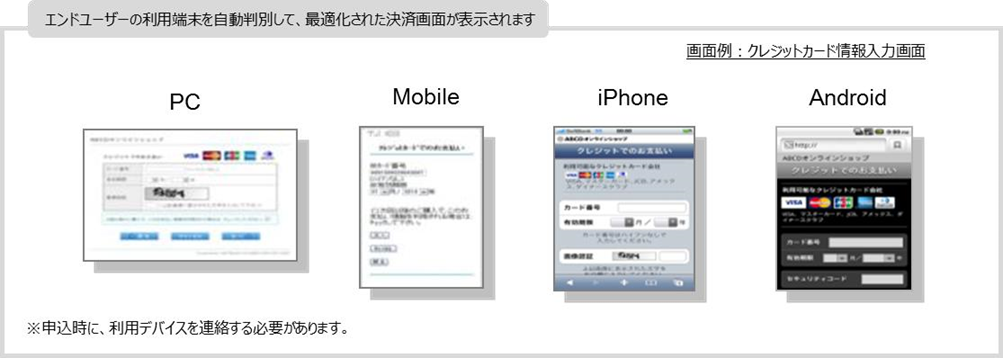
  2. Displays the screen for the type of terminal used by the customer as requested by the merchant.
    *When specified as "PC," outputs the screen for PCs. *When specified as "Mobile," identifies the browser type in the request header and automatically displays the dedicated screen for the relevant carrier among the three major carriers.

<<About the displayed fields>>

Displayed fieldsDescription
Payment methodThe payment methods requested by the merchant are displayed.
* If no payment method is specified in the request, all the pre-set payment methods are displayed.
* If a payment method is specified in the request, the specified payment method is displayed.
*If a single payment method is requested by the merchant, the Payment Selection screen will not be displayed.
*iPhone and Android are handled as optional.
* Any order of displaying the payment methods can be specified.
Example: Example: When the payment method is a credit card payment, WebMoney Payment, or d Payment (Carrier)
name=“pay_method” value=”credit, webmoney, docomo”
Browser's "戻る (Go back)" buttonPressing the Go Back button on the browser will not make the screen go back to the merchant's screen.

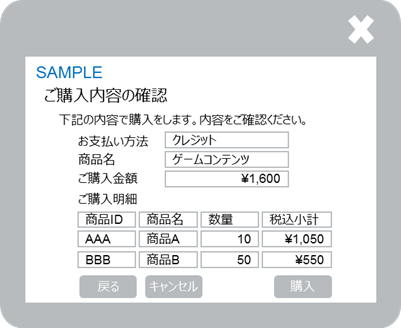
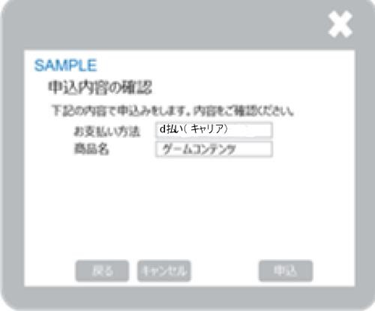
Purchase Confirmation Screen (Screen Transition #2)

(1) Displays the purchase details in the request made from the Merchant.

<<About the displayed fields>>

Displayed fieldsDescription
Payment method:The selected payment method
Item name"Item Name" in the merchant request *This is not displayed if no request is set.
Amount:"Amount (incl. tax)" in the Merchant request
Details:The details of purchase for displaying on the screen in the Merchant request. *No details will be displayed if no details are provided.
"Go Back" buttonScreen moves to the screen for each payment method
"Cancel" buttonMoves to the Purchase Cancellation screen
Purchase buttonMoves to the Purchase Processing screen *Moves to the screen of the financial institution, or to the Purchase Completion screen.

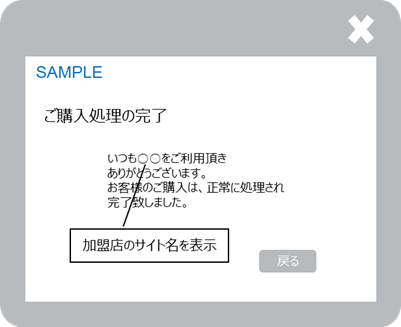
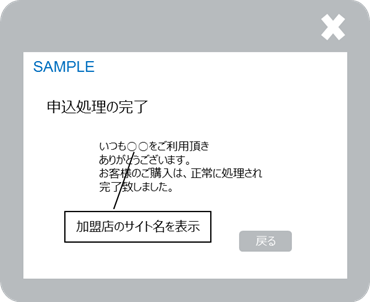
Purchase Completion Screen (Screen Transition #3)

(1) When the purchase has been made normally, the Purchase Completion screen is displayed.
*When the purchase has been made normally, the session ID is discarded.

<<About the displayed fields>>

Displayed fieldsDescription
"Go Back" buttonThe screen moves to the completion screen specified by the merchant.

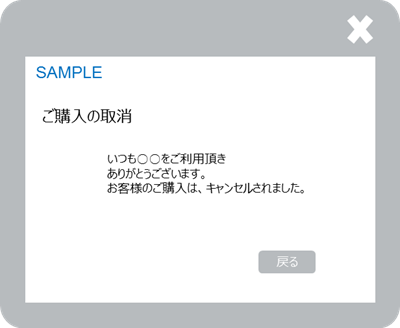
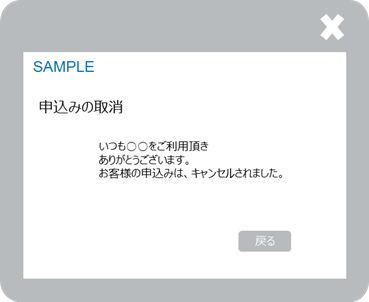
Purchase Cancellation Screen (Screen Transition #4)

(1) When the purchase is canceled, the Purchase Cancellation screen is displayed.
*When the purchase is canceled, the session ID is discarded.

<<About the displayed fields>>

Displayed fieldsDescription
"Go Back" buttonThe screen moves to the cancellation screen specified by the merchant.

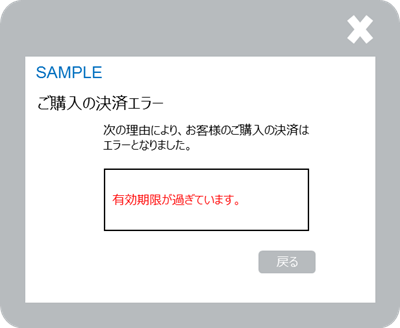
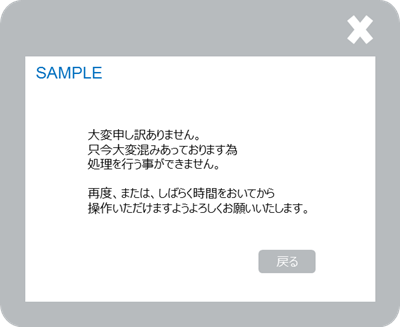
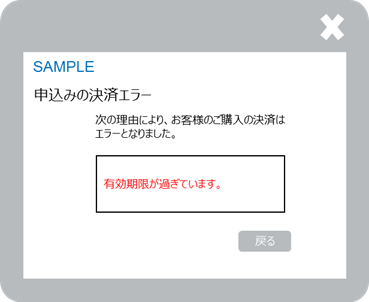
Purchase Error Screen (Screen Transition #5)

(1) When a purchase error occurs, the Purchase Error screen is displayed

<<About the displayed fields>>

Displayed fieldsDescription
"Go Back" buttonThe screen moves to the error screen specified by the merchant.
Details of payment errorThe details of error are displayed.
* Depending on the payment method, details of the payment error may or may not be displayed.

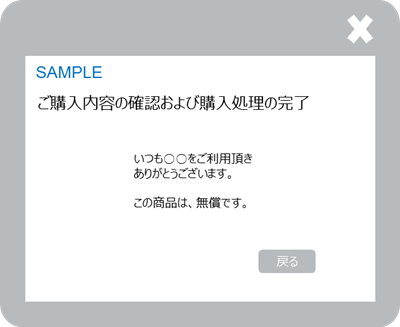
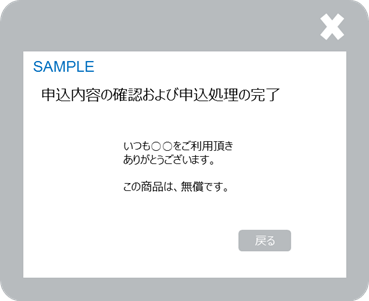
Purchase Completion Screen - No charge/0 yen is specified (Screen Transition #6)

(1) When the purchase has been made normally, the Purchase Completion screen is displayed.
*When the purchase has been made normally, the session ID is discarded.

<<About the displayed fields>>

Displayed fieldsDescription
"Go Back" buttonThe screen moves to the completion screen specified by the merchant.

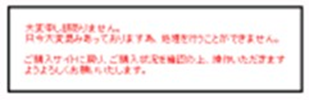
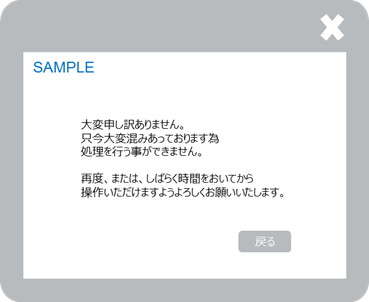
System Error Screen (Screen Transition #7)

(1) When an error occurred in the check process, and so on, the error screen is displayed
*If an error occurs in the check of PC/mobile specification, the user agent in the request header is identified, and the dedicated screen for the relevant carrier among the three major carriers and another carrier is automatically displayed.

<<About the displayed fields>>

Displayed fieldsDescription
"Go Back" buttonThe screen moves to the URL specified for purchase request errors.
*If no merchant is identified, the "Back to Previous Screen" button is not displayed.
In addition, when the button is hidden, a screen with the unified system design is displayed as the merchant cannot be identified.

<<Examples of reasons for displaying system error screens>>

ScreenExample reasons for display
When the merchant is specified
A duplicate purchase ID has been found in the purchase request.
The purchase request has exceeded the allowable request time.
The checksum value in the purchase request is incorrect.
The attributes of the parameters in the purchase request do not match the interface specifications.
The end user has refreshed the screen on one of SBPS’s displayed pages.
When no merchant is specified

The Merchant ID in the purchase request differs from the assigned ID.
The Service ID in the purchase request differs from the assigned ID.
The end user has repeatedly refreshed the screens displayed by SBPS. (In cases where the information retained on our screen was cleared)
Function IDProcess nameFlowDescription
B01-1Customer payment information
Registration/Update Request
Merchant → SBPSRegisters or updates customer payment information
B02-1Customer payment information
Registration/Update Result CGI
SBPS → MerchantNotifies the result of customer payment information registration or update
B02-2Customer payment information
Registration/Update Result CGI
Response
Merchant → SBPSReturns a response to the result CGI
B03-1Customer payment information
Registration/Update Request
(redirect back to merchant's screen)
SBPS → MerchantNotifies the result of customer payment information registration or update.
Also returns the end user screen to the merchant page.
C01-1Customer payment information
Delete Request
Merchant → SBPSDeletes customer payment information
C02-1Customer payment information
Deletion Result CGI
SBPS → MerchantNotifies the deletion result of customer payment information
C02-2Customer payment information
Deletion Result CGI
Response
Merchant → SBPSReturns a response to the result CGI
C03-1Customer payment information
Deletion Result (redirect back to merchant's screen)
SBPS → MerchantNotifies the deletion result of customer payment information.
Also returns the end user screen to the merchant page.

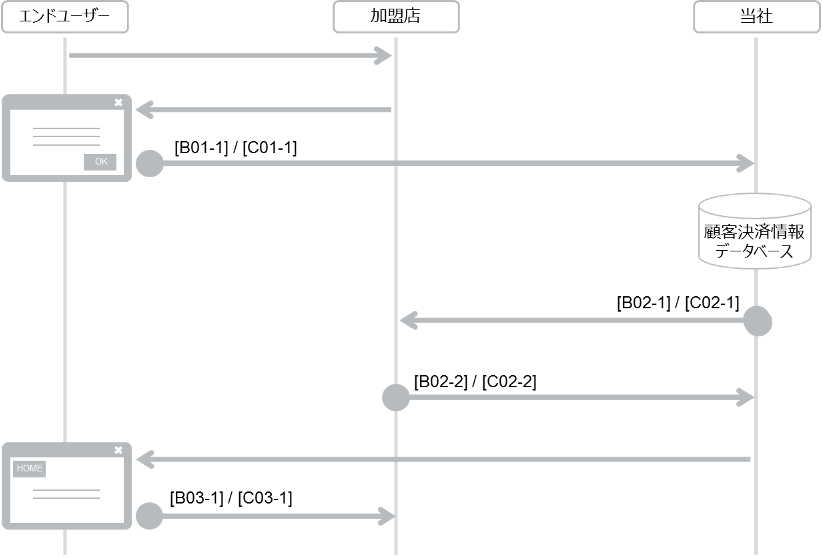
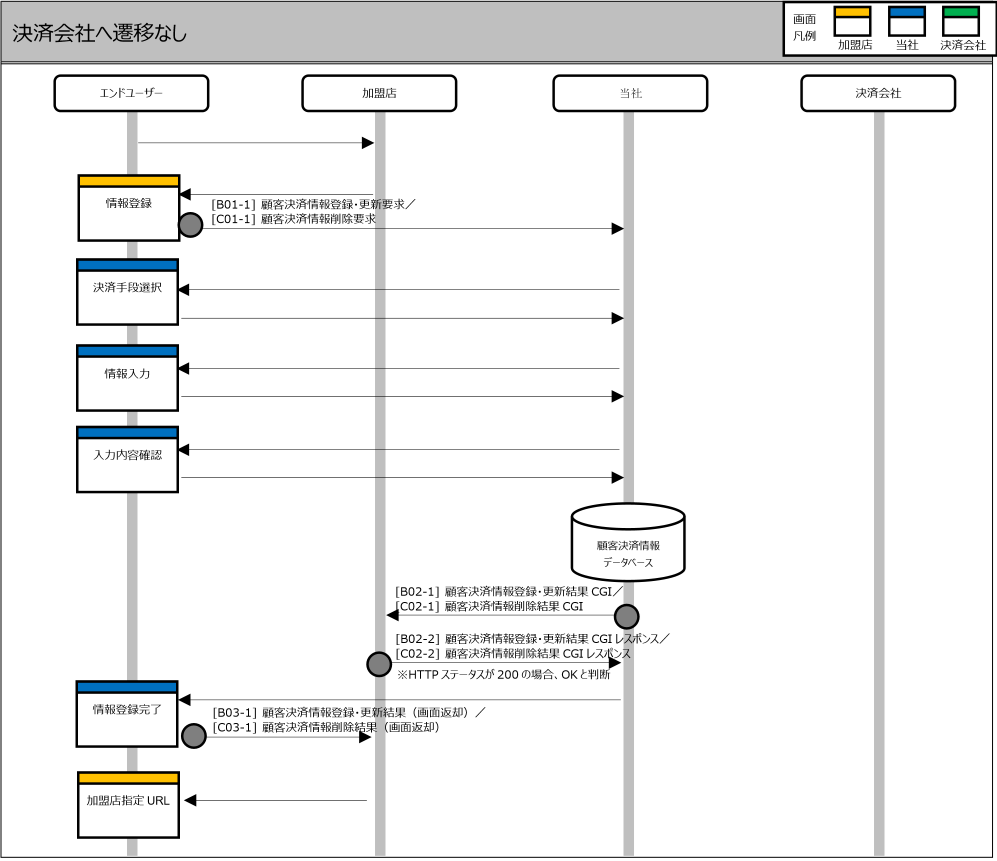
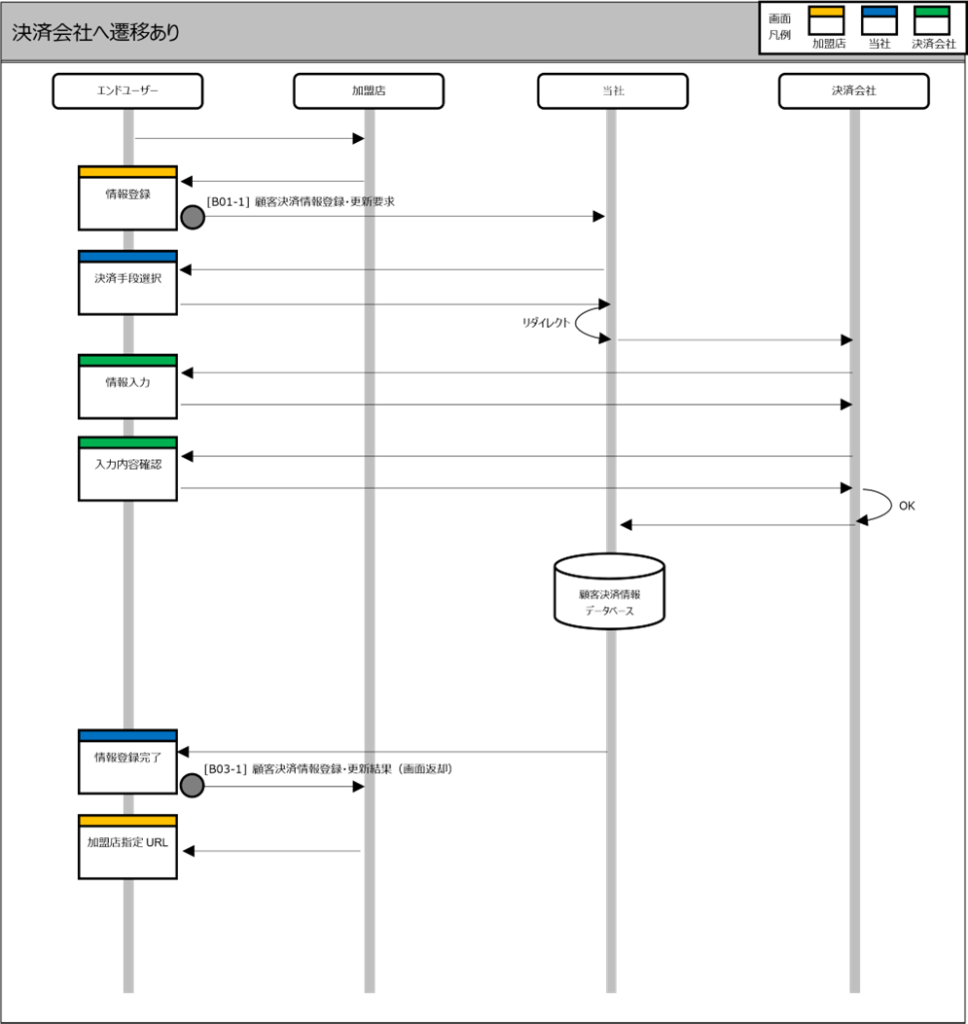
There are the following two types of screen transition when end users register customer payment information.

  • Pattern in which the screen moves only to screens provided by SBPS
  • Pattern in which the screen also moves to screens provided by each financial institution
  • Pattern in which the screen moves only to screens provided by SBPS

The pattern in which the entire screens for the payment process from customer payment information registration information entry to customer payment information registration information completion are displayed only at our end for conclusion. Since the entire screens are provided with our standard screens, it is possible to provide the service with a unified screen image. By customizing the screens, it is also possible to unify the screen design with the Merchant's design. If you wish to customize the screens, please contact our sales representative.

<<Applicable payment methods>>

Credit card payment *1

*1: For the ID verification service (3D Secure) in credit card payment, a password input screen on the credit card company side will be inserted.

*The same processing sequence is used for termination.

  • Pattern in which the screen also moves to screens provided by each financial institution

In this pattern, the payment information input screen and other screens are displayed on each financial institution side. The screen image displayed after transition to each financial institution and the screen transition will vary between the financial institutions.

<<Applicable payment methods>>

T-Point Program (Online Payment)Account transfer service

*If pay_method is "accttransfer (Account transfer service)" when requesting B01-1, the registration result will be linked in the account registration result file after 1 to 2 business days.

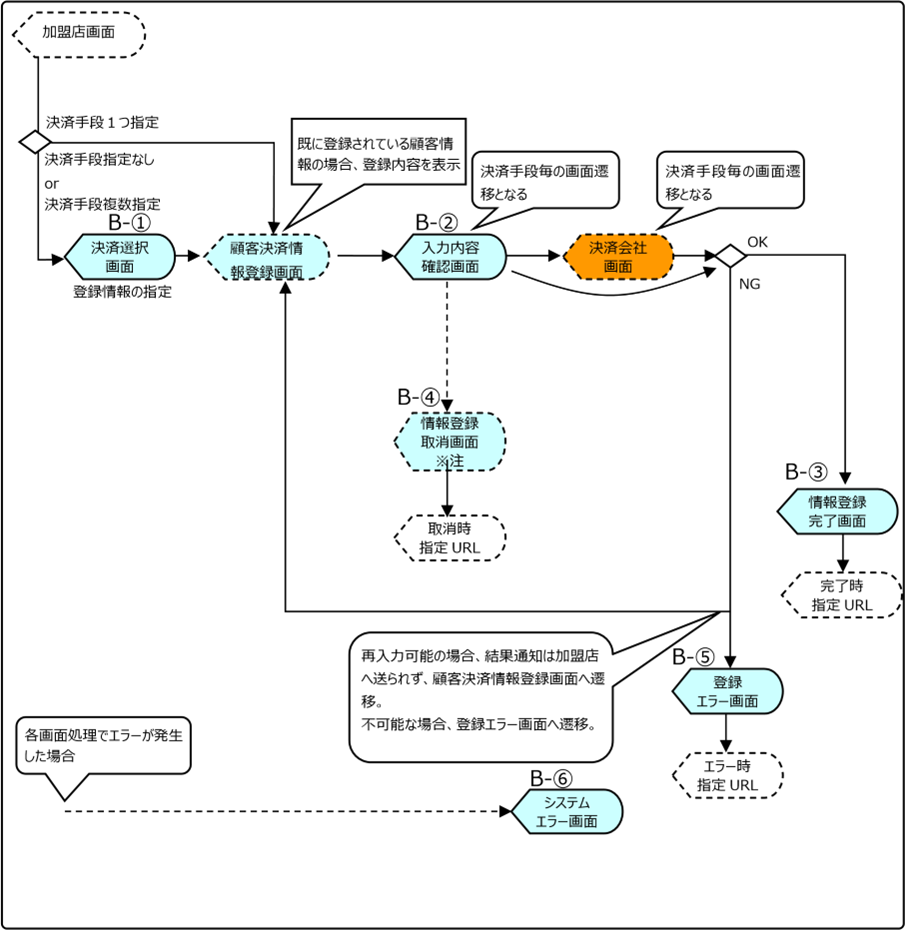
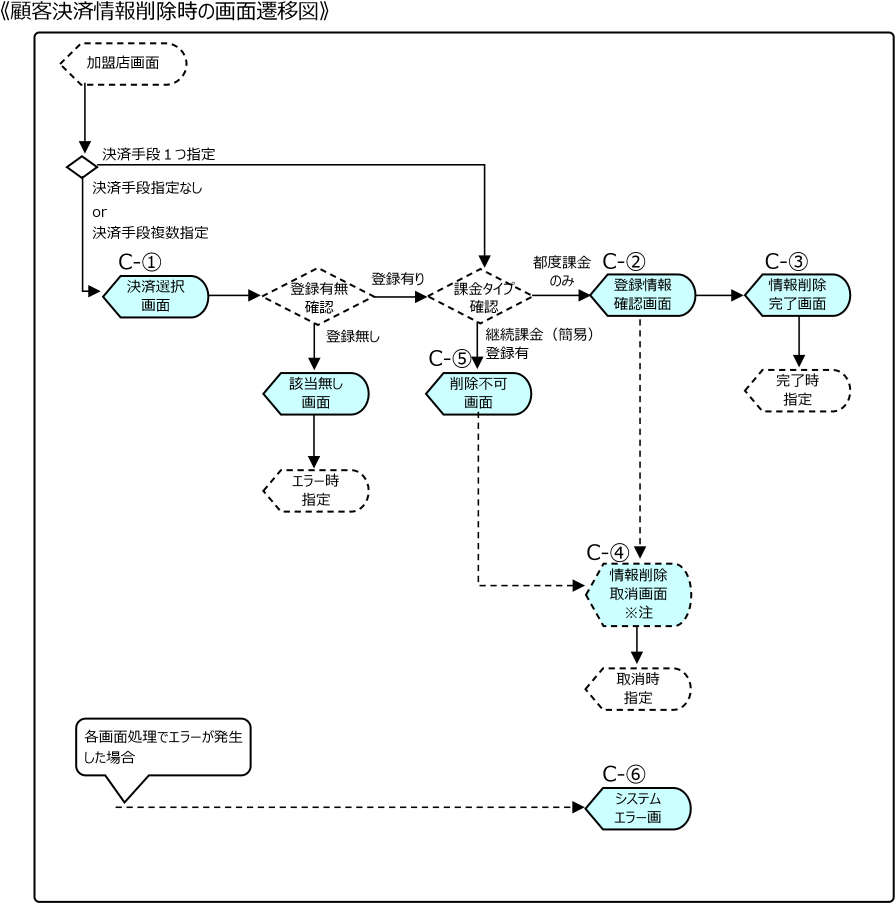
The transition diagram of screens to be displayed to the end user is different when registering and deleting customer payment information.

<<Screen Transition Diagram when Registering Customer Payment Information>>

*Note: The information registration cancellation screen has been removed due to a design change since 2020. It will be displayed in the previous design.
• If canceled on the Financial Institution Screen, the screen moves to the URL for cancellation.
• If this transition is necessary, contact our sales representative.
*In the event of a cancellation, system error, or re-entry, a processing result notification will not be sent to the merchant.

*Note: The information deletion cancellation screen has been removed due to a design change since 2020. It will be displayed in the previous design.
• If canceled on the Financial Institution Screen, the screen moves to the URL for cancellation.
• If this transition is necessary, contact our sales representative.

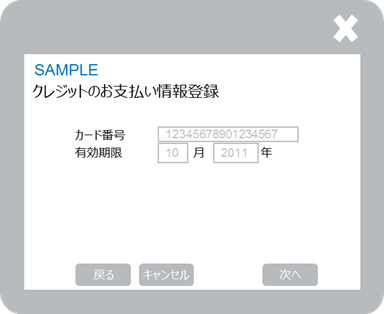
The screens displayed in customer payment information registration request are as follows.
* Although the credit card payment is used as an example, the fields or others displayed on the screen are different by payment method.

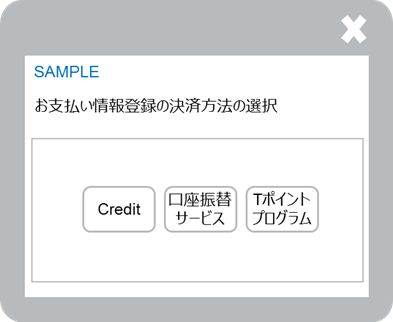
Payment Selection Screen (Screen Transition #B-1 and C-1)

  1. Checks the request from the merchant.
    * For details of the check, please refer to Link Type Basic Specifications.
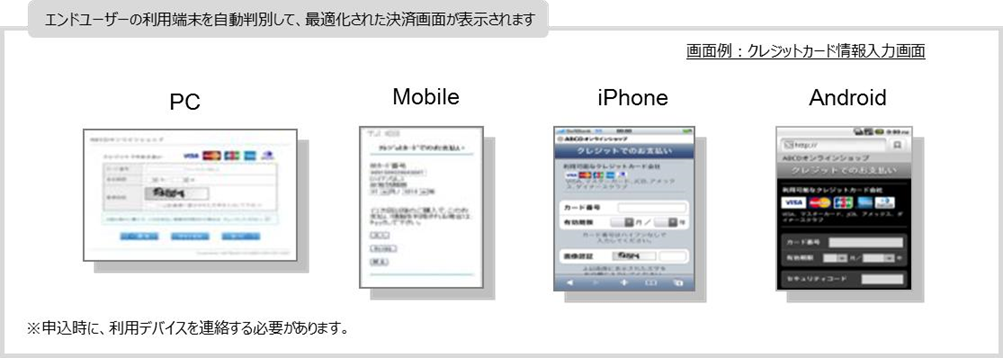
  2. Displays the screen for the type of terminal used by the customer as requested by the merchant.
    *When specified as "PC," outputs the screen for PCs.
    * When specified as "Mobile," identifies the browser type in the request header and automatically displays the dedicated screen for the relevant carrier among the three major carriers.

<<About the displayed fields>>

Displayed fieldsDescription
Payment methodThe payment methods requested by the merchant are displayed. * If no payment method is specified in the request, all the pre-set payment methods are displayed.
* If a payment method is specified in the request, the specified payment method is displayed.
*If a single payment method is requested by the merchant, the Payment Selection screen will not be displayed.
*iPhone and Android are handled as optional.
* Any order of displaying the payment methods can be specified.
For example: payment methods = Credit Card Payment name="pay_method" value="credit,tpoint"

Entry Confirmation Screen (Screen Transition #B-2)

(1) The content entered by the end user is displayed

<<About the displayed fields>>

Displayed fieldsDescription
Credit card numberThe credit card information entered by the end user on the previous screen is displayed
Expiration dateThe credit card expiration date (month and year) entered by the end user on the previous screen is displayed
"Go Back" buttonThe screen moves to the Customer Payment Information Input screen
"Cancel" buttonThe screen moves to the Information Registration Cancellation screen
Next buttonThe screen moves to the Information Registration Completion screen

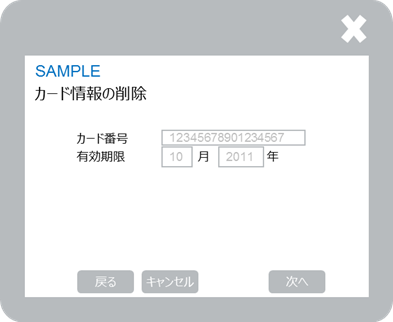
Registration Information Confirmation Screen (Screen Transition #C-2)

(1) The registered content is displayed

<<About the displayed fields>>

Displayed fieldsDescription
Credit card numberThe registered credit card information is displayed
Expiration dateThe registered credit card expiration date (month and year) is displayed
"Go Back" buttonThe screen moves to the Payment Selection screen
*The screen will not be displayed when one payment method is specified as the customer information registration request from the merchant.
"Cancel" buttonThe screen moves to the Information Deletion Cancellation screen
Next buttonThe screen moves to the Information Deletion Completion screen

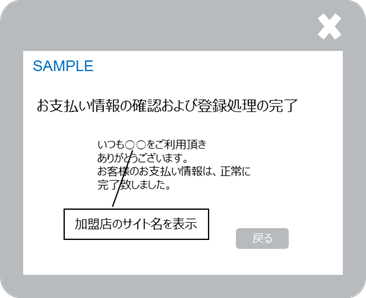
Information Registration Completion Screen/Information Deletion Completion Screen (Screen Transition #B-3, C-3)

(1) When the registration or deletion is completed normally, the Registration/Deletion Completion screen is displayed.

*When the information is registered/deleted normally, the session ID is discarded.

<<About the displayed fields>>

Displayed fieldsDescription
"Go Back" buttonThe screen moves to the completion screen specified by the merchant.

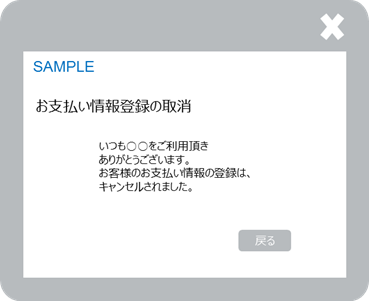
Information Registration Cancellation Screen/Information Deletion Cancellation Screen (Screen Transition #B-4, C-4)

(1) When the registration/deletion is canceled, the Registration/Deletion Cancellation screen is displayed.

*When the registration/deletion is canceled, the session ID is discarded.

<<About the displayed fields>>

Displayed fieldsDescription
"Go Back" buttonThe screen moves to the cancellation screen specified by the merchant.

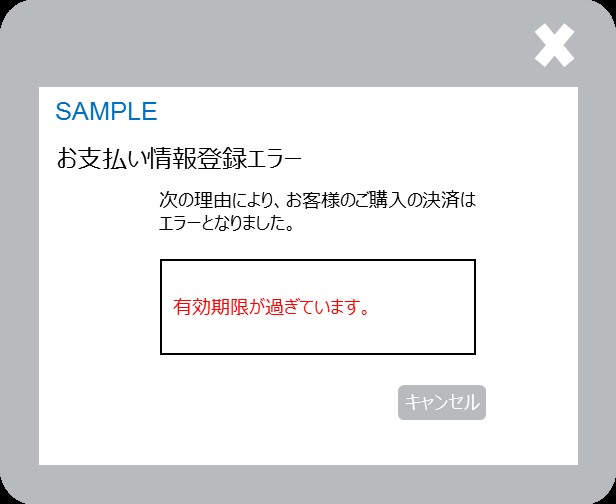
Registration Error Screen (Screen Transition #B-5)

(1) When a registration error occurs, the Registration Error screen is displayed

<<About the displayed fields>>

Displayed fieldsDescription
"Cancel" buttonThe screen moves to the error screen specified by the merchant.
Details of payment errorThe details of error are displayed. *The error content may not be displayed.

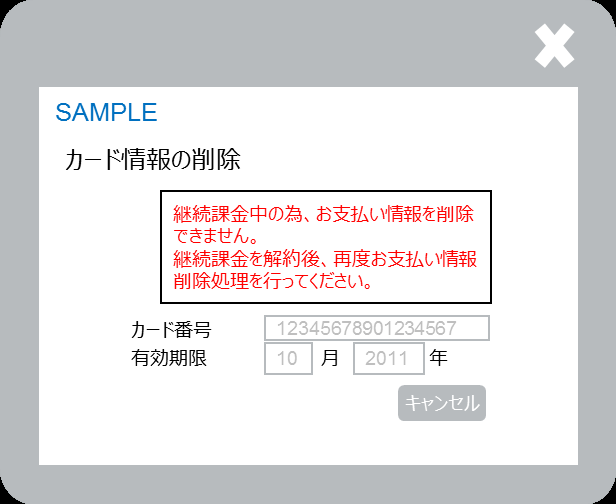
Not Deletable Screen (Screen Transition #C-5)

(1) If recurring billing (simplified) is registered, the Not Deletable screen is displayed

<<About the displayed fields>>

Displayed fieldsDescription
"Cancel" buttonThe screen moves to the cancellation screen specified by the merchant.
Details of payment errorThe details of error are displayed. *The error content may not be displayed.

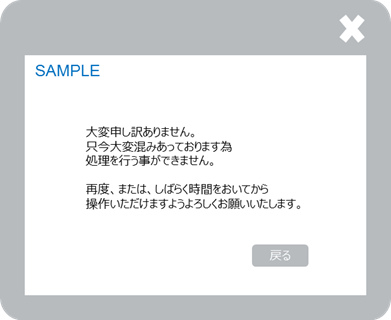
System Error Screen (Screen Transition #B-6, C-6)

(1) When an error occurred in the check process, and so on, the error screen is displayed

* If an error occurs during the PC/mobile specification check, the user agent in the request header is identified and automatically assigned to the dedicated screen for the three major carriers and other carriers.

<<About the displayed fields>>

Displayed fieldsDescription
"Go Back" buttonThe screen moves to the URL specified for customer payment information registration/update request or deletion request errors.
*If no merchant is identified, the "Back to Previous Screen" button is not displayed.
In addition, when the button is hidden, a screen with the unified system design is displayed as the merchant cannot be identified.

<<Examples of reasons for displaying system error screens>>

ScreenExample reasons for display
The request has exceeded the allowable request time.
The checksum value in the request is incorrect.
The attributes of the parameters in the request do not match the interface specifications.
The end user has refreshed the screen on one of SBPS’s displayed pages.
When no merchant is specified
The Merchant ID in the request differs from the assigned ID.
The Service ID in the request differs from the assigned ID.
The end user has repeatedly refreshed the screens displayed by SBPS. (In cases where the information retained on our screen was cleared)
Function IDProcess nameFlowDescription
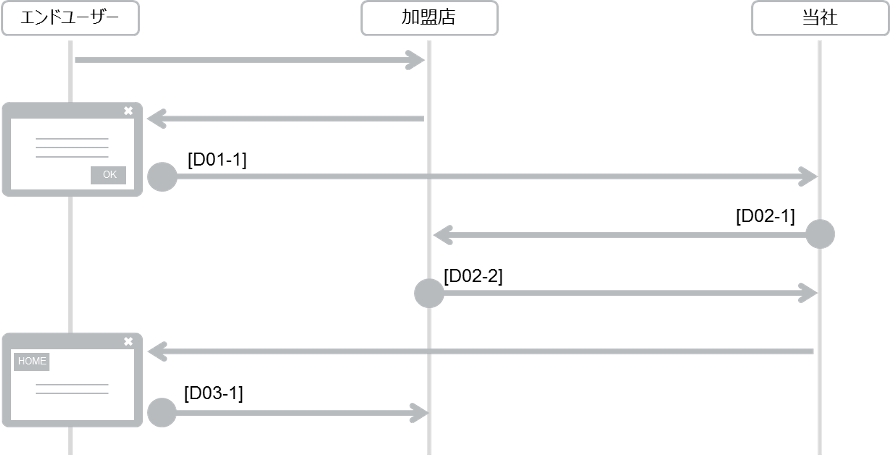
D01-1Recurring Billing (fixed term/pay-as-you-go) RequestMerchant → SBPSRequests or terminates recurring billing (fixed term/pay-as-you-go)
D02-1Recurring Billing (fixed term/pay-as-you-go) Request Result CGISBPS → MerchantNotifies the request or termination result of recurring billing (fixed term/pay-as-you-go)
D02-2Response to Recurring Billing (fixed term/pay-as-you-go) Request Result CGIMerchant → SBPSReturns a response to the result CGI
D03-1Recurring Billing (fixed term/pay-as-you-go) Request Result (redirect back to merchant's screen)SBPS → MerchantNotifies the request or termination result of recurring billing (fixed term/pay-as-you-go)
Also returns the end user screen to the merchant page.

In this pattern, the payment information input screen and other screens are displayed on each financial institution side. The screen image displayed after transition to each financial institution and the screen transition will vary between the financial institutions.

<<Applicable payment methods>>

SoftBank Matomete Shiharai (B)d Payment (Carrier/Wallet)au PAY(au Kantan Kessai (Easy Payment))
PayPay (Online Payment)Rakuten Pay (Online Payment)Rakuten Pay (Online Payment)V2

*The same processing sequence is used for termination.
* For PayPay (Online Payment), an API cancellation notification is generated when a user cancels through the PayPay app. For more details on the notification, please refer to API type PayPay (Online Payment) IF Specifications.

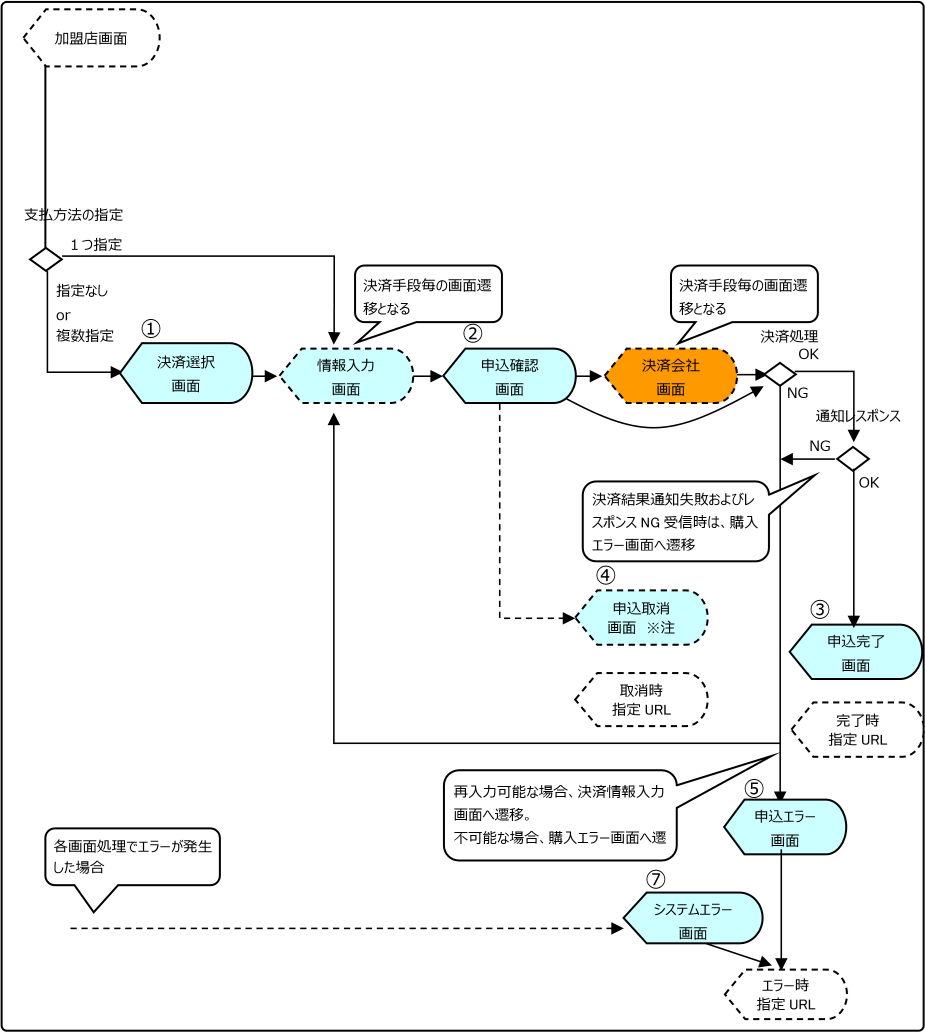
The transition diagram of screens to be displayed to the end user is as follows.

*Note: The transition of the Purchase Cancellation Screen has been deleted in 2020 due to a design change. It will be displayed in the previous design.
• If canceled on the Financial Institution Screen, the screen moves to the URL for cancellation.
• If this transition is necessary, contact our sales representative.

The screens displayed in recurring billing (fixed term/pay-as-you-go) request are as follows.

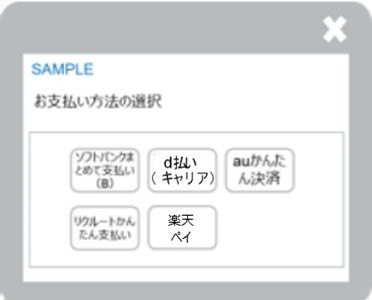
Payment Selection Screen (Screen Transition #1)

  1. Checks the request message from the merchant.
    * For details of the check, please refer to Link Type Basic Specifications.
  2. Displays the screen for the type of terminal used by the customer as requested by the merchant.
    *When specified as "PC," outputs the screen for PCs.
    *When specified as "Mobile," identifies the browser type in the request header and automatically displays the dedicated screen for the relevant carrier among the three major carriers.

<<About the displayed fields>>

Displayed fieldsDescription
Payment methodThe payment methods requested by the merchant are displayed.
* If no payment method is specified in the request, all the pre-set payment methods are displayed.
* If a payment method is specified in the request, the specified payment method is displayed.
*If a single payment method is requested by the merchant, the Payment Selection screen will not be displayed.
*iPhone and Android are handled as optional.
* Any order of displaying the payment methods can be specified.
Example: When the payment method is a credit card payment, WebMoney Payment, or d-Barai
(Carrier/Wallet), name=“pay_method” value=”credit, webmoney, docomo”
Browser's "戻る (Go back)" buttonPressing the Go Back button on the browser will not make the screen go back to the merchant's screen.

Request Confirmation Screen (Screen Transition #2)

(1) The request details in the request made from the merchant is displayed

<<About the displayed fields>>

Displayed fieldsDescription
Payment method:The selected payment method
Item name"Item Name" in the merchant request *This is not displayed if no request is set.
"Go Back" buttonScreen moves to the screen for each payment method
"Cancel" buttonThe screen moves to the Request Cancellation screen
"Request" buttonThe screen moves to the Request Processing screen *Moves to the screen of the financial institution, or to the Purchase Completion screen.

Request Completion Screen (Screen Transition #3)

(1) When the request has been made normally, the Request Completion screen is displayed.

<<About the displayed fields>>

Displayed fieldsDescription
"Go Back" buttonThe screen moves to the completion screen specified by the merchant.

Request Cancellation Screen (Screen Transition #4)

(1) When the request is canceled, the Request Cancellation screen is displayed.
*When the request is canceled, the session ID is discarded.

<<About the displayed fields>>

Displayed fieldsDescription
"Go Back" buttonThe screen moves to the cancellation screen specified by the merchant.

Request Error Screen (Screen Transition #5)

(1) When a request error occurs, the Request Error screen is displayed

<<About the displayed fields>>

Displayed fieldsDescription
"Go Back" buttonThe screen moves to the error screen specified by the merchant.
Details of payment errorThe details of error are displayed.
*Depending on the payment method, details of the payment error
may or may not be displayed.

Request Completion Screen - No charge/0 yen is specified (Screen Transition #6)

(1) When the request has been made normally, the Request Completion screen is displayed.
*When the request has been made normally, the session ID is discarded.

<<About the displayed fields>>

Displayed fieldsDescription
"Go Back" buttonThe screen moves to the completion screen specified by the merchant.

System Error Screen (Screen Transition #7)

(1) When an error occurred in the check process, and so on, the error screen is displayed
*If an error occurs in the check of PC/mobile specification, the user agent in the request header is identified, and the dedicated screen for the relevant carrier among the three major carriers and another carrier is automatically displayed.

<<About the displayed fields>>

Displayed fieldsDescription
"Go Back" buttonThe screen moves to the URL specified for request errors.
*If no merchant is identified, the "Back to Previous Screen" button is not displayed.
In addition, when the button is hidden, a screen with the
unified system design is displayed as the merchant cannot be identified.

<<Examples of reasons for displaying system error screens>>

ScreenExample reasons for display
When the merchant is specified

There are multiple Purchase IDs in the Request request.
The application request has exceeded the allowable request time.
The checksum value in the application request is incorrect.
The attributes of the parameters in the application request do not match the interface specifications.
The end user has refreshed the screen on one of SBPS’s displayed pages.
When no merchant is specified

The Merchant ID in the application request differs from the assigned ID.
The Service ID in the Request request differs from the assigned ID.
The end user has repeatedly refreshed the screens displayed by SBPS. (In cases where the information retained on our screen was cleared)
Was this page helpful?